


Introduction
A visible contact button can lead to the wrong number or fail to open on some devices. For a mobile visitor, this small link may be the main way to reach the service. Test the real user journey as well as the design screen.
Match the visible information to the link destination
Read the phone number on the page, then inspect the destination. Does the number passed to the calling app match the visible number? Are the country code and spaces handled correctly? Test each copy in the footer, menu and fixed contact button separately.
Follow the click journey on different devices
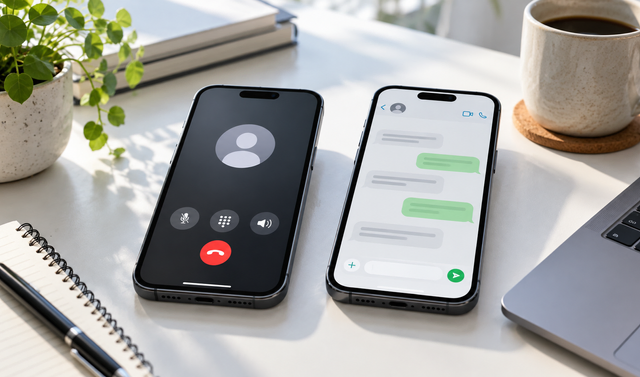
On at least one real mobile device, check that the phone link opens the calling screen. You do not need to complete a call. Does the WhatsApp link reach the correct number and expected chat screen? Also inspect browser behaviour when the app is absent. On desktop, test whether the link opens the expected app or web version.
Read the prefilled message
If there is a prefilled message, make sure its language is current, clear and relevant to the service. Avoid adding unnecessary personal information. Check that Turkish characters remain intact when editing URL parameters.
Remember visibility and accessibility
Does other content cover the button on a small screen? Can the link be reached with a keyboard? Use labels that identify the contact method. If you find an error, note the page, device and link position, then repeat the test after the correction.
Record corrections and test again
Keep a short checklist of the page address, device, displayed contact information, opened destination and result. After fixing a link, repeat the same steps on mobile and desktop. This checks that it reaches the correct contact channel.
A short device check can reveal hidden problems in the contact journey. Explore DijitUP for website user experience support.